1. Introduction
Almanac is the centralized academic calendar module within the K-12 LMS. It provides a structured and reliable source of information for all school-related events, including academic activities, examinations, holidays, vacations, and institutional events.
The module is designed to:
- Consolidate event communication in one place
- Improve visibility for parents and students
- Enable structured planning for schools
- Ensure consistency across web and mobile experiences
2. Role-Based Access Overview
Access to Almanac is governed by role-based permissions.
| Role | Web Access | Mobile Access | Create/Edit/Delete | View |
| Super Admin | Yes | No | Yes | Yes |
| HO Admin | Yes | No | Yes | Yes |
| School Admin | Yes (View Only and Personalised to LMS mapping) | No | Yes | Yes |
| Teacher | Yes (View Only and Personalised) | No | No | Yes |
| Parent | Yes (View Only) | Yes | No | Yes |
| Student | Yes (View Only) | Yes | No | Yes |
3. Super Admin Guide
3.1 Responsibilities
Super Admin oversees system-level governance and configuration of the Almanac module across brands and schools. Upload brand-level regional and national holidays list.
3.2 Administration
- Access Almanac via Web (School Management → Almanac (Web))
- View and manage events across all brands and schools
- Upload brand-level regional and national holidays list.
3.3 Configuration
- Configure academic year dates
- Define limits for National and Regional holidays
- Manage shared holiday lists
- Oversee permission mapping for Almanac roles
3.4 Permissions
Super Admin can:
- Create, Edit and Delete events (subject to business rules)
- How- to Link Almanac User Guide
- Upload holiday lists
3.5 Reporting
- Review event distribution across schools
- Monitor adoption patterns
- Validate event accuracy and completeness
3.6 Use Cases
- Defining annual holiday policy along with business stakeholders
- Publishing centralized holiday calendars at a brand level
- Ensuring brand-level consistency
4. HO Admin Guide
4.1 Responsibilities
HO Admin manages Almanac at the brand or tenant level.
4.2 Administration
- Access Almanac via Web (School Management → Almanac)
- View all schools within assigned brand
- Manage events across brand schools
- Validate holiday lists
4.3 Configuration
- Align holiday limits with brand policies
4.4 Permissions
HO Admin can:
- Create, Edit and Delete events (subject to business rules) within assigned brand
- How – to Link Almanac User Guide
4.5 Use Cases
- Standardizing brand-wide events
- Managing regional holiday applicability
- Ensuring calendar compliance
5. School Admin Guide
5.1 Responsibilities
- School Admin manages the school-level academic calendar.
- Create, Edit and Delete events (subject to business rules) within assigned brand
- How – to Link Almanac User Guide
5.3 Event Management
- Edit event details
- Update audience
- Delete future events (as per rules)
- View event hierarchy within calendar cells
5.4 Best Practices
- Avoid overlapping events without clear purpose
- Ensure audience is correctly defined
- Use full-day selection appropriately
- Maintain chronological consistency
6. Teacher Guide
6.1 Access
Teachers have view-only access on the Web.
Access Almanac via Web (School Management → Almanac (Web))
6.2 What Teachers Can Do
- View all school events as per their LMS mapping
- Filter by class or grade
- Review event details
- Plan classroom activities accordingly
6.3 Use Cases
- Checking exam schedules
- Reviewing PTM dates
- Preparing for school events
7. Parent Guide (Web & Mobile App)
7.1 Access
App → More → Almanac
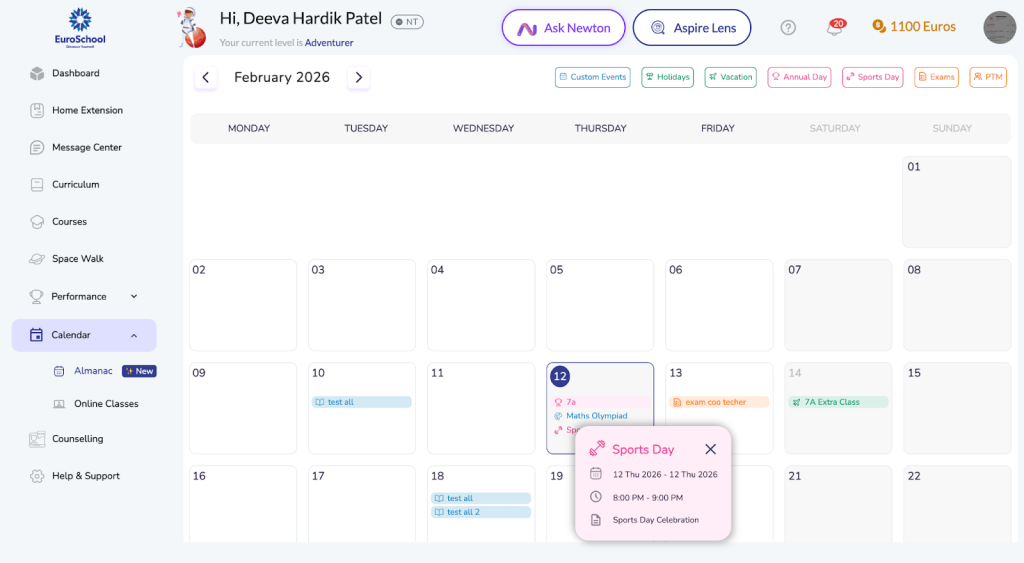
Web → Side Navigation → Calendar → Almanac
7.2 Default View & Navigation
- Current month opens automatically
- Auto-scroll to current date
- App → Events displayed in list format
- Web → Events displayed in monthly calendar format
- Use left and right arrows to switch months
- Tap month name to change month or academic year
- Apply event-type filters
7.3 Viewing Event Details
Tap on an event to view:
- Event name, Date, Time, Description
7.4 Notifications
Parents receive:
- Monthly upcoming events notification
- Real-time new event notification (within next 30 days)
- Real-time event update notification (within next 30 days)
- Real-time event delete notification (within next 30 days)
7.5 Use Cases
- Tracking exam schedules
- Planning travel around vacations
- Preparing for PTMs and school events
8. Student Guide (Web & Mobile App)
8.1 Access
App → More → Almanac
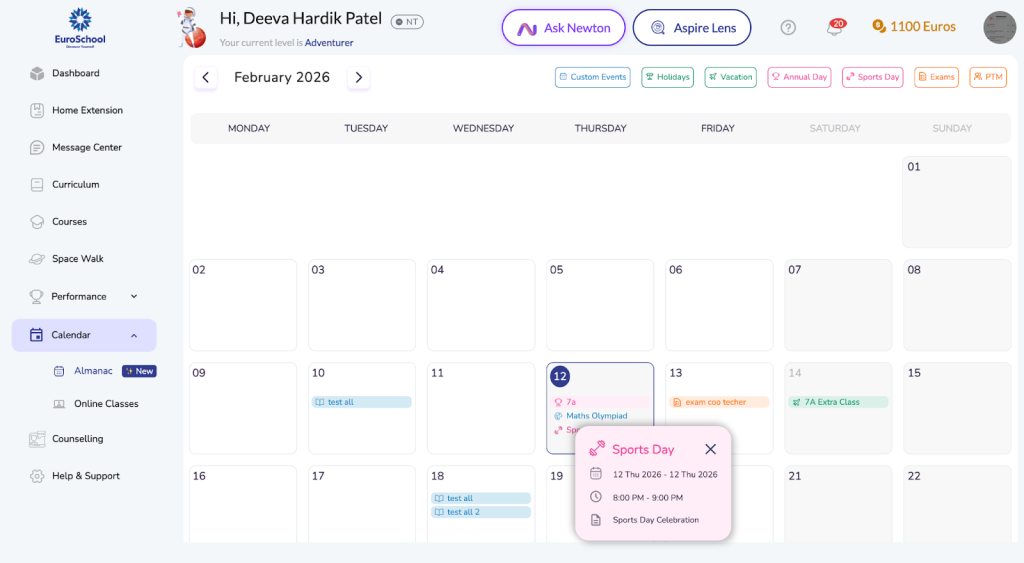
Web → Side Navigation → Calendar → Almanac
8.2 Default View & Navigation
- Current month opens automatically
- Auto-scroll to current date
- App → Events displayed in list format
- Web → Events displayed in monthly calendar format
- Use left and right arrows to switch months
- Tap month name to change month or academic year
- Apply event-type filters
8.3 Viewing Event Details
Tap on an event to view:
- Event name
- Date
- Time
- Description
8.4 Notifications
Parents receive:
- Monthly upcoming events notification
- Real-time new event notification (within next 30 days)
- Real-time event update notification (within next 30 days)
- Real-time event delete notification (within next 30 days)
8.5 Use Cases
- Preparing for upcoming exams and assessments
- Tracking school functions
- Staying informed about important academic dates
How to Create an Event
- Access Almanac via Web (School Management → Almanac (Web))
- Click Add Event
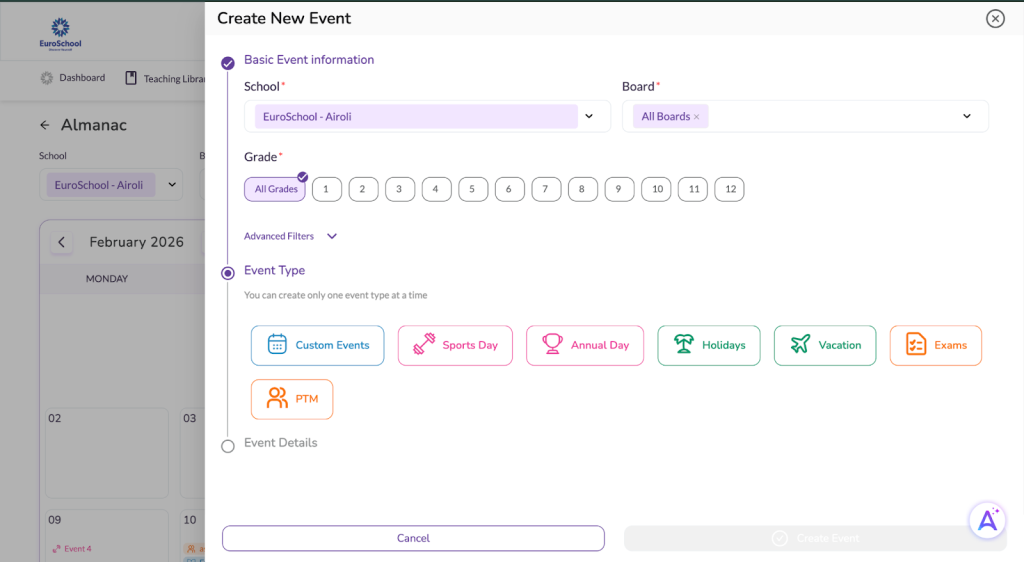
- Fill required fields:
- Audience
- School
- Board
- Grade
- Advanced filters (Optional)
- Division
- Students
- Event Type Selection (Custom / Sports Day, Annual Day, Holidays, Vacations, Exams, PTM)
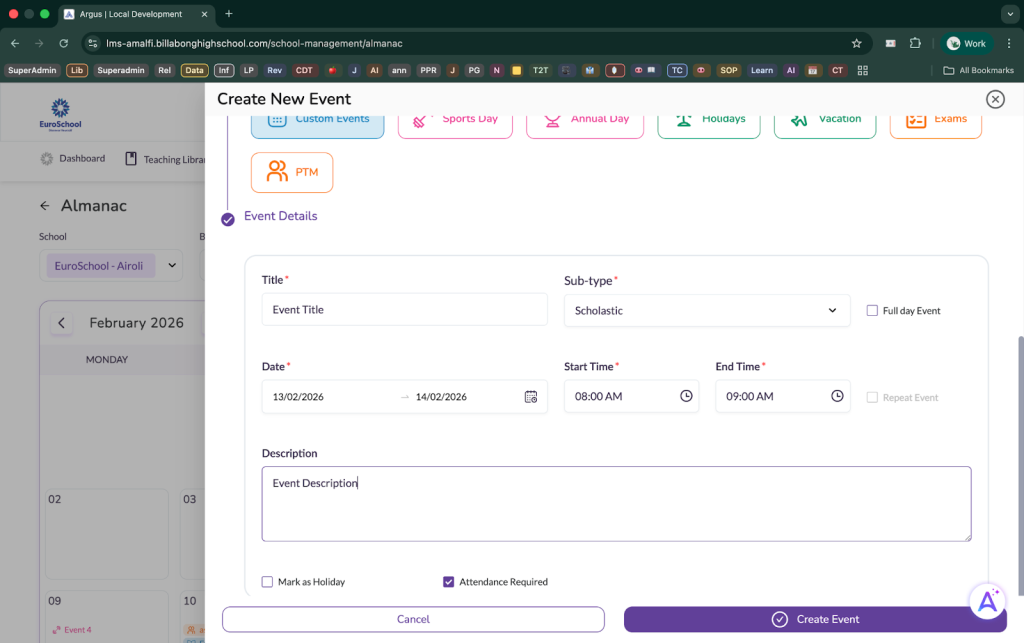
- Event Details:
- Event Title
- Subtype
- Full day event (Y/N)
- Date range
- Time Range (if not full-day)
- Mark as Holiday (Y/N)
- Mark attendance (Y/N)
- Audience
- Click Create event (after all mandatory details are filled)
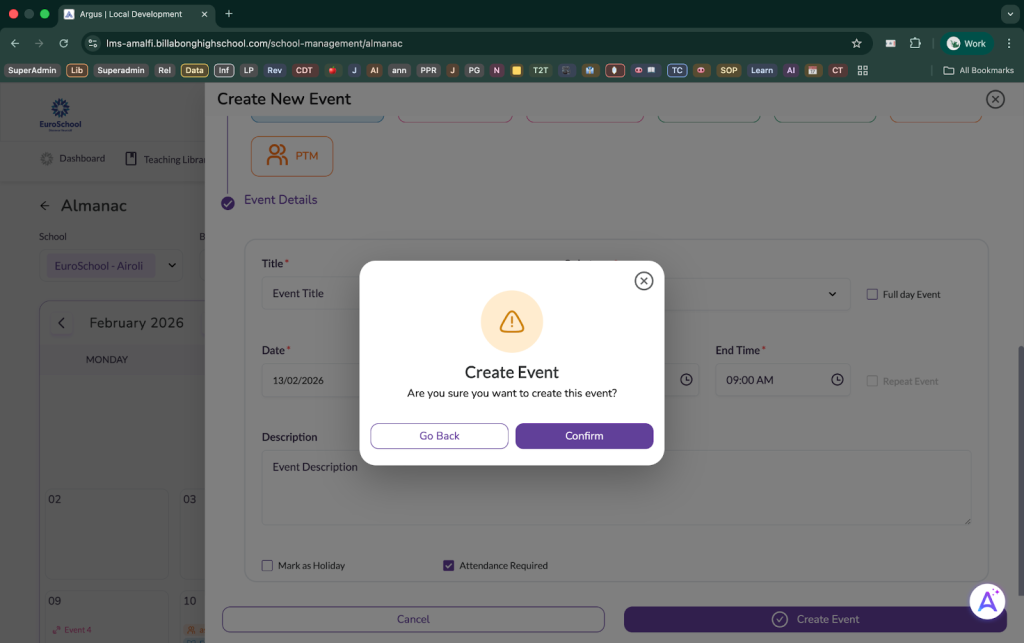
- Click Confirm on Confirmation Pop up
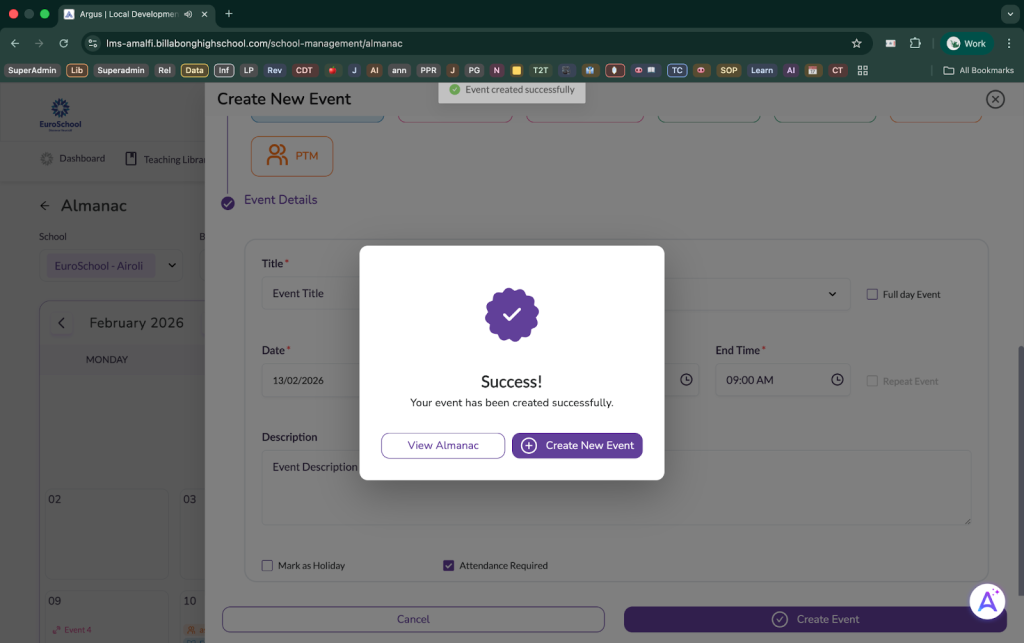
How to Update an Event
- Only events with Start time in the future can be edited
- Events with Start time in the past can only change Title and Description
- Event Type cannot be changed
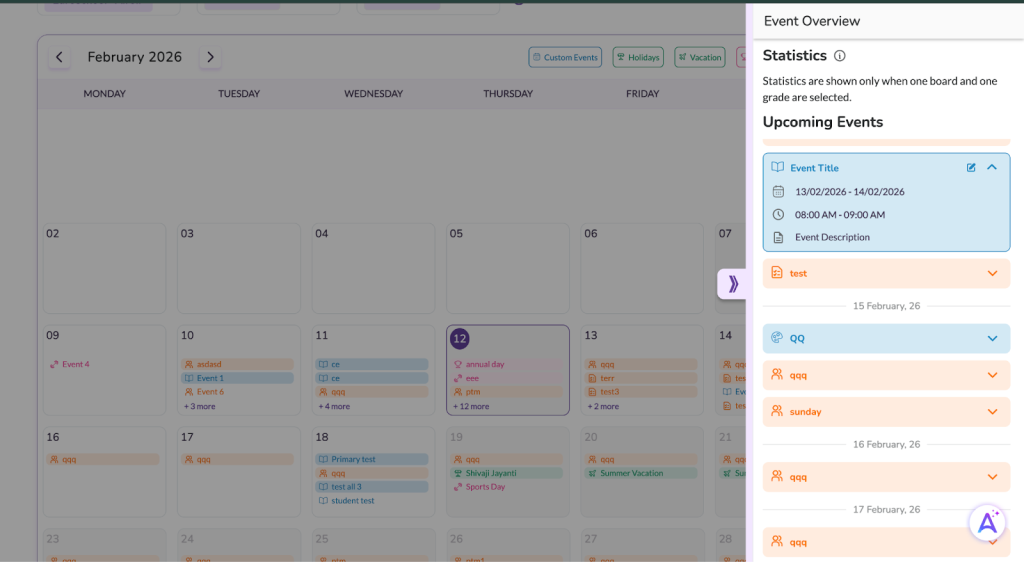
- Access a Particular Event by clicking on it on the calendar or Side Navigation.
- Event details open up on the Side Navigation
- Click Update/ Edit icon
- Update required fields:
- Audience
- School
- Board
- Grade
- Advanced filters (Optional)
- Division
- Students
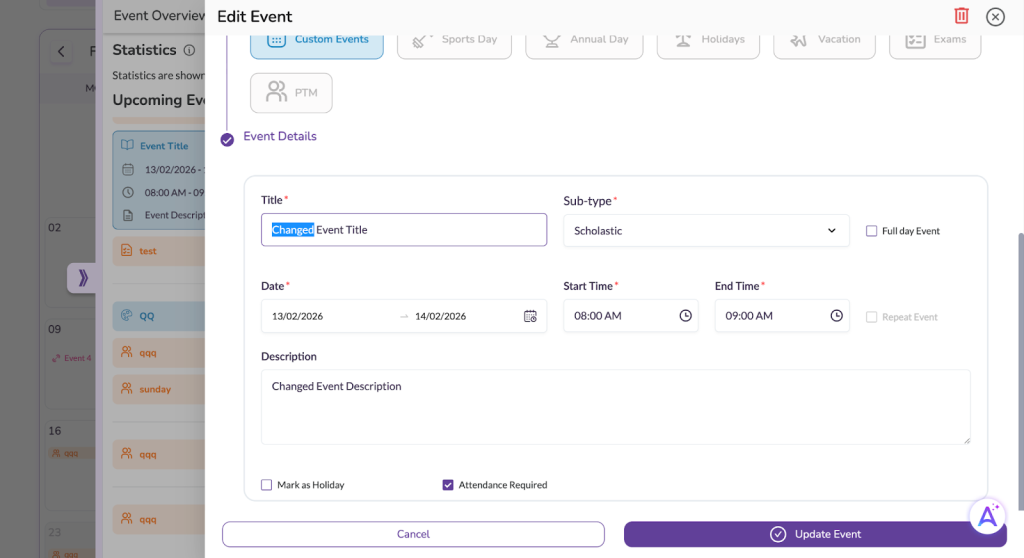
- Event Details:
- Event Title
- Subtype
- Full day event (Y/N)
- Date range
- Time Range (if not full-day)
- Mark as Holiday (Y/N)
- Mark attendance (Y/N)
- Audience
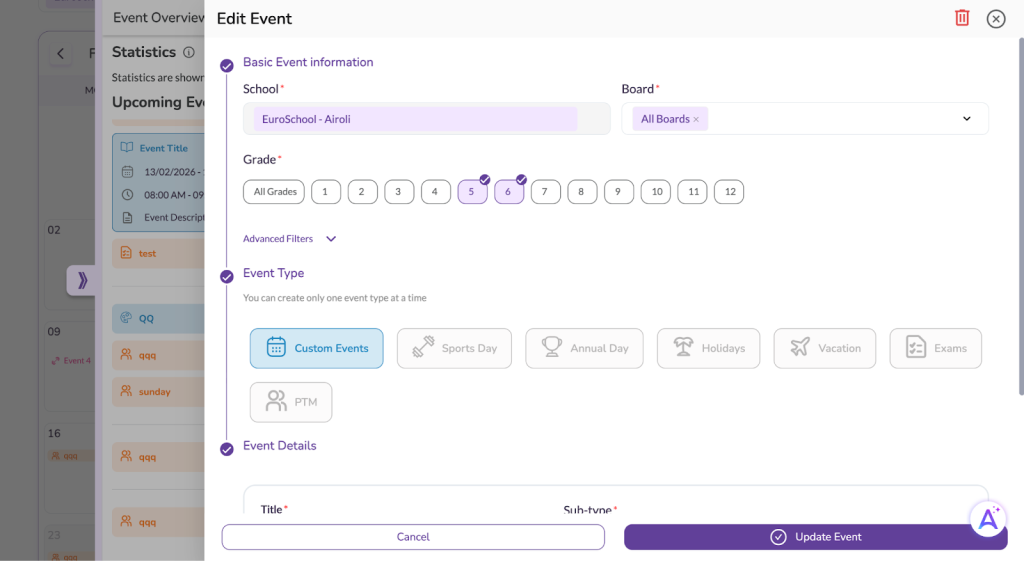
- Click Update event (after all mandatory details are filled)
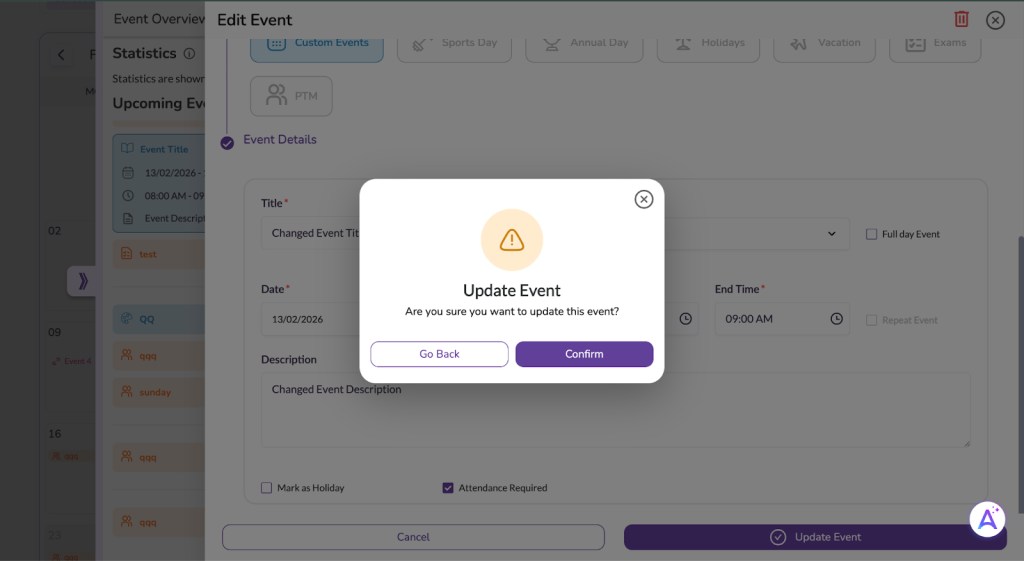
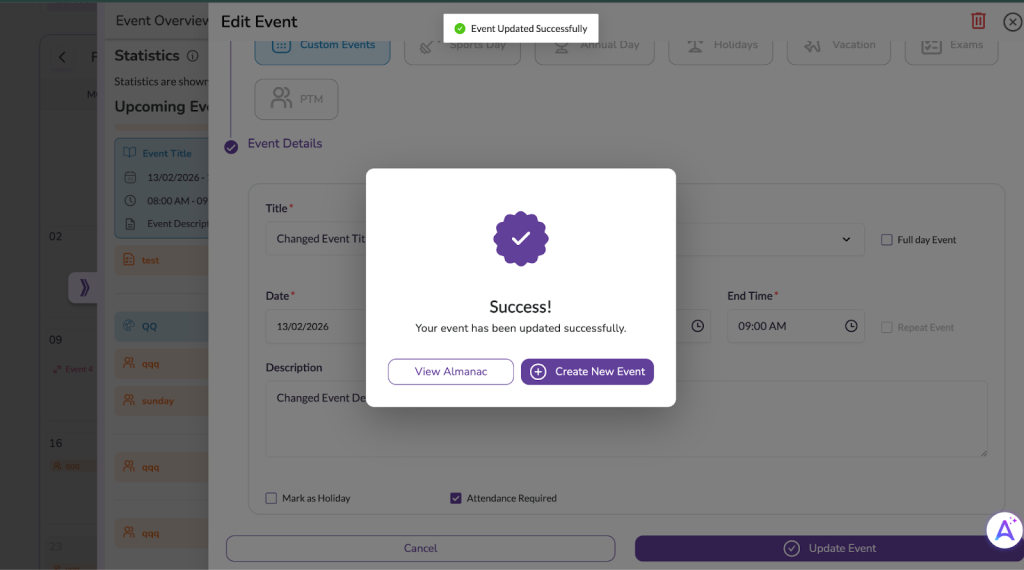
- Click Confirm on Confirmation Pop up
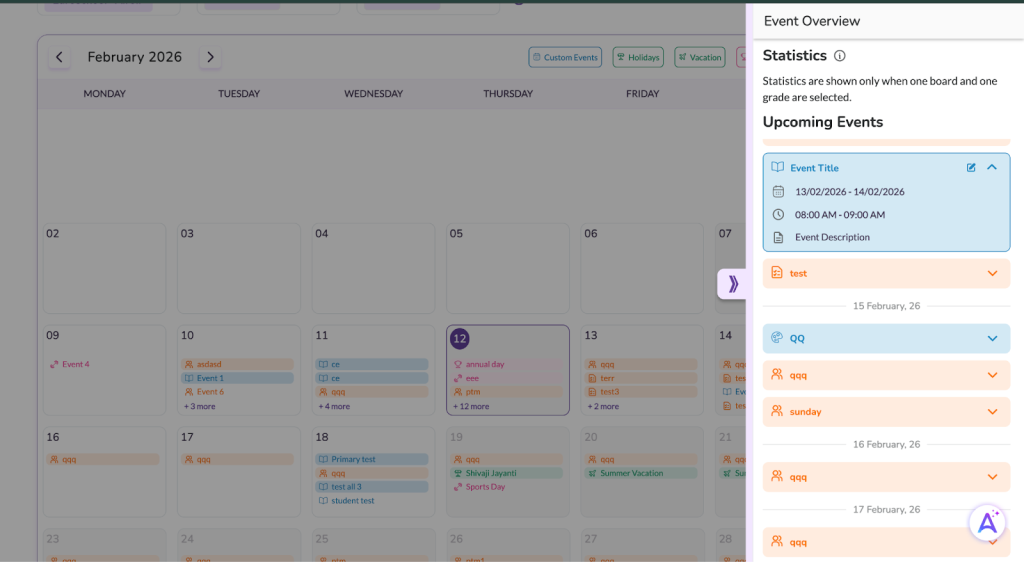
How to Delete an Event
- Only events with Start time in the future can be deleted
- Access a Particular Event by clicking on it on the calendar or Side Navigation.
- Event details open up on the Side Navigation
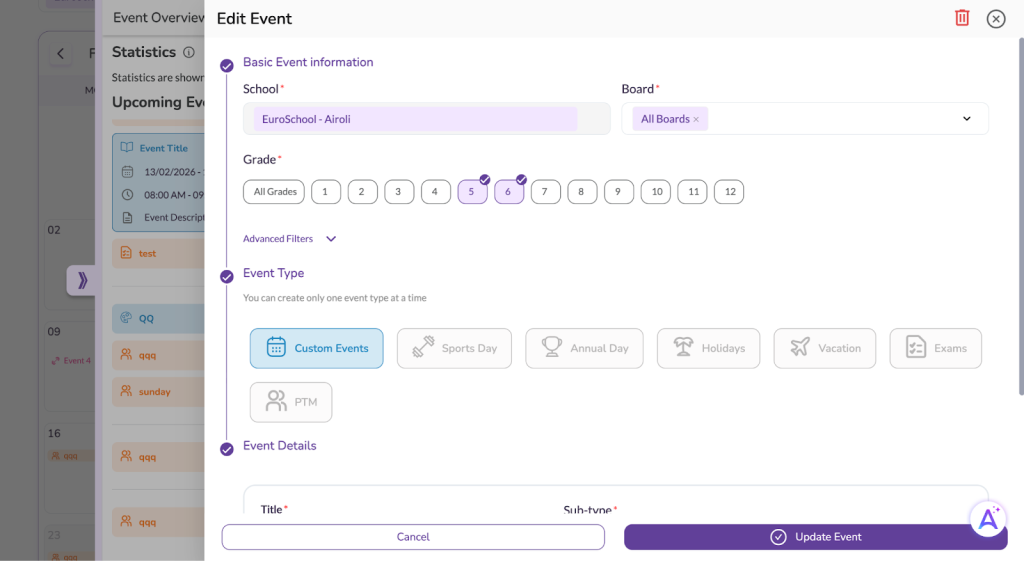
- Click Update/ Edit icon
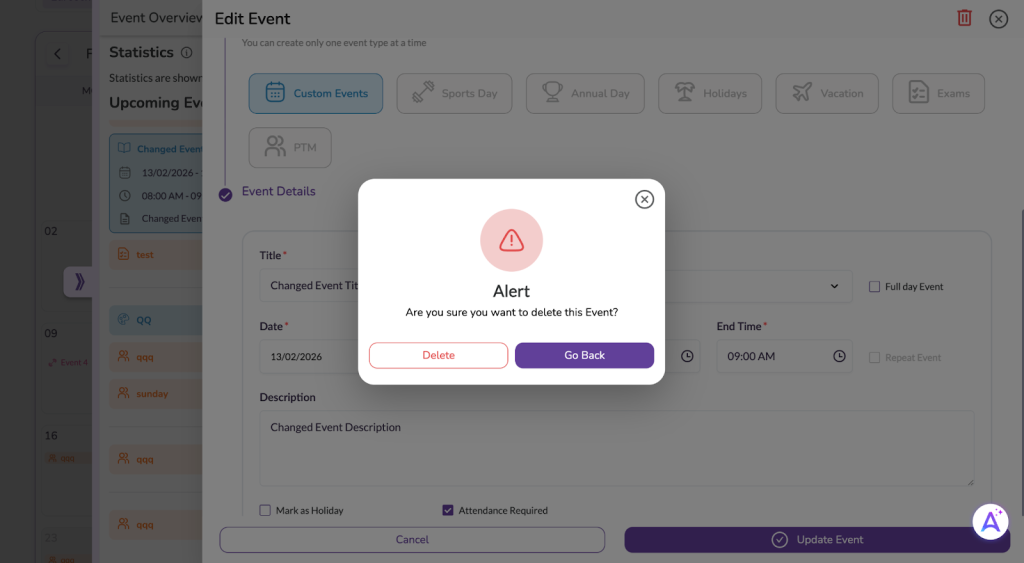
- Click Delete icon
- Click Delete on Confirmation Pop up
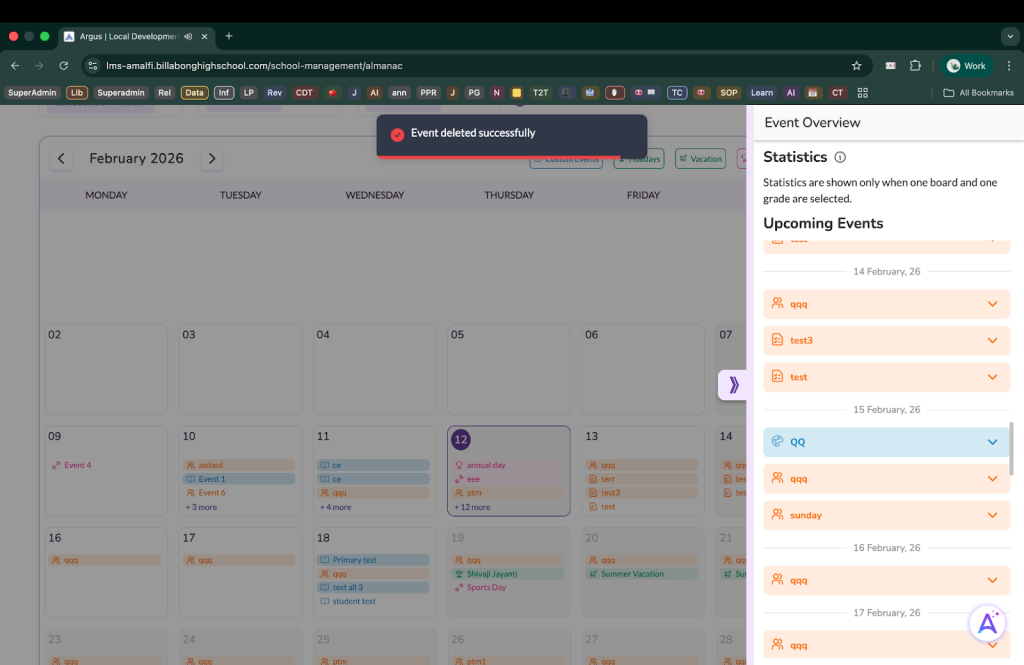
9. Event Hierarchy & Display Logic
- Events are grouped by date
- Longest duration event appears first
- Full-day events are visually highlighted
- Icons and colors follow defined design standards
10. Notifications Overview
- Monthly Digest – Sent 3 days before the next month begins if events exist.
- New Event Created – Triggered when a new event within 30 days is created.
- Event Updated – Triggered when an event within 30 days is updated.
11. Governance & Compliance
- Events must fall within academic year boundaries
- Past and live events cannot be deleted
- Permission checks are enforced at both UI and API levels
12. Frequently Asked Questions
Can teachers create events?
No. Teachers have view-only access.
Can parents edit events?
No. Almanac is read-only on mobile.
Why can’t I create an event in the past?
Events must be scheduled for current or future times, with defined system rules.
13. Conclusion
Almanac provides a unified and structured academic calendar experience for schools, ensuring clarity, transparency, and alignment across administrators, teachers, parents, and students.
Leave a Reply