Tag: transfer certificate

  • Transfer Certificate User Manual

    PRODUCT CONTEXT

    The Transfer Certificate (TC) feature is part of the Lighthouse K12 LMS ecosystem used by Lighthouse Learning schools. The feature enables parents to digitally raise a request when they intend to withdraw their child from the school.

    Traditionally, transfer certificate requests required physical visits to the school and manual paperwork. This feature digitizes the entire workflow within the LMS platform, allowing parents to submit requests directly through the system while enabling school administrators to review, approve, or request reconsideration.

    The TC feature ensures transparency, traceability, and efficient communication between parents and school administrators.

    FEATURE DESCRIPTION

    The Transfer Certificate feature allows parents to submit a formal request for a student’s exit from the school by providing a reason and feedback. Once submitted, the request is reviewed by the school administration.

    Administrators can either:

    Approve the request, allowing the TC process to proceed
    Ask the parent to reconsider, prompting a conversation before final approval

    The feature helps schools capture valuable feedback about student exits while ensuring the process is handled in a structured and auditable manner.

    PLATFORMS SUPPORTED

    PlatformAvailability
    WebAdmin access only
    MobileParent access
    BothNotifications

    Note: Parent TC functionality is currently mobile-first.

    PERSONAS INVOLVED

    • Head Office (HO) Admin
    • Principal/ School Admin
    • Parent

    Students are not directly involved in the TC process.

    BUSINESS RULES

    The TC feature operates under the following business logic:

    • Parents can raise a TC request only for the current Academic Year (AY)
    • The system automatically captures the current AY
    • Parents cannot edit or select the academic year
    • A parent cannot create multiple active TC requests simultaneously

    Existing request handling:

    • If an existing request is pending, parents cannot create another request
    • If an existing request is withdrawn, parents may create a new request

    PERMISSIONS LOGIC

    Access and actions depend on the user’s role.

    RoleCreateEditApproveReconsiderView
    HO AdminNoNoNoNoYes
    School AdminNoNoYesYesYes
    PrincipalNoNoYesYesYes
    ParentYesLimitedNoRespondYes

    Parents cannot edit requests after submission.

    NOTIFICATIONS

    The TC feature generates system notifications to keep stakeholders informed.

    Notification types include:

    In-app notifications
    Email notifications

    Notifications are triggered during:

    • Request submission
    • Request reconsideration
    • Request approval

    Cross-platform handling:

    If a user opens a notification on a platform where the TC module is unavailable:

    • The notification appears read-only
    • CTA buttons remain disabled
    • Clicking the notification marks it as read

    A toast message will display:

    “Transfer Certificate feature is not available on [platform] platform currently.”

    Example:

    “Transfer Certificate feature is not available on Web platform currently.”

    1. Introduction

    The Transfer Certificate feature digitizes the process of student withdrawal from the school.

    Schools often lose valuable insights into why parents choose to move their children to other institutions. This feature enables structured feedback collection during the exit process.

    The feature solves several operational challenges:

     • Eliminates manual paperwork
    • Allows parents to submit requests digitally
    • Provides schools with actionable feedback
    • Creates an auditable record of exit requests
    • Ensures controlled approval workflows

    Beneficiaries include:

     • Parents requesting student transfers
    • School administrators managing exits
    • Head Office teams monitoring retention trends

    2. Role-Based Access Overview

    RoleWeb AccessMobile AccessCreateEditDeleteView
    HO AdminYesNoNoNoNoYes
    Principal/ School adminYesNoNoNoNoYes
    ParentNoYesYesLimitedWithdrawYes

    RBAC Logic:

     • Parents initiate TC requests
    • School leadership reviews requests
    • HO Admin monitors data but does not intervene directly

    3. Super Admin Guide

    3.1 Responsibilities

     • Monitor TC activity across schools
    • Ensure policy compliance
    • Review analytics and trends
    • Ensure correct permissions are tagged

    3.2 Administration

     • System configuration of TC workflows
    • Monitoring TC data integrity

    3.3 Configuration

    Super Admin can configure:

     • Review analytics and trends
    • Ensure correct permissions are tagged

    3.4 Permissions

    Super Admin has:

     • Full system visibility
    • Configuration privileges

    3.5 Reporting

    Reports may include:

     • TC requests by school
    • Exit trends by academic year
    • Reasons for withdrawal

    4. HO Admin Guide

    4.1 Responsibilities

     • Monitor TC requests across all schools
    • Identify patterns in student exits

    4.2 Administration

    HO Admin may:

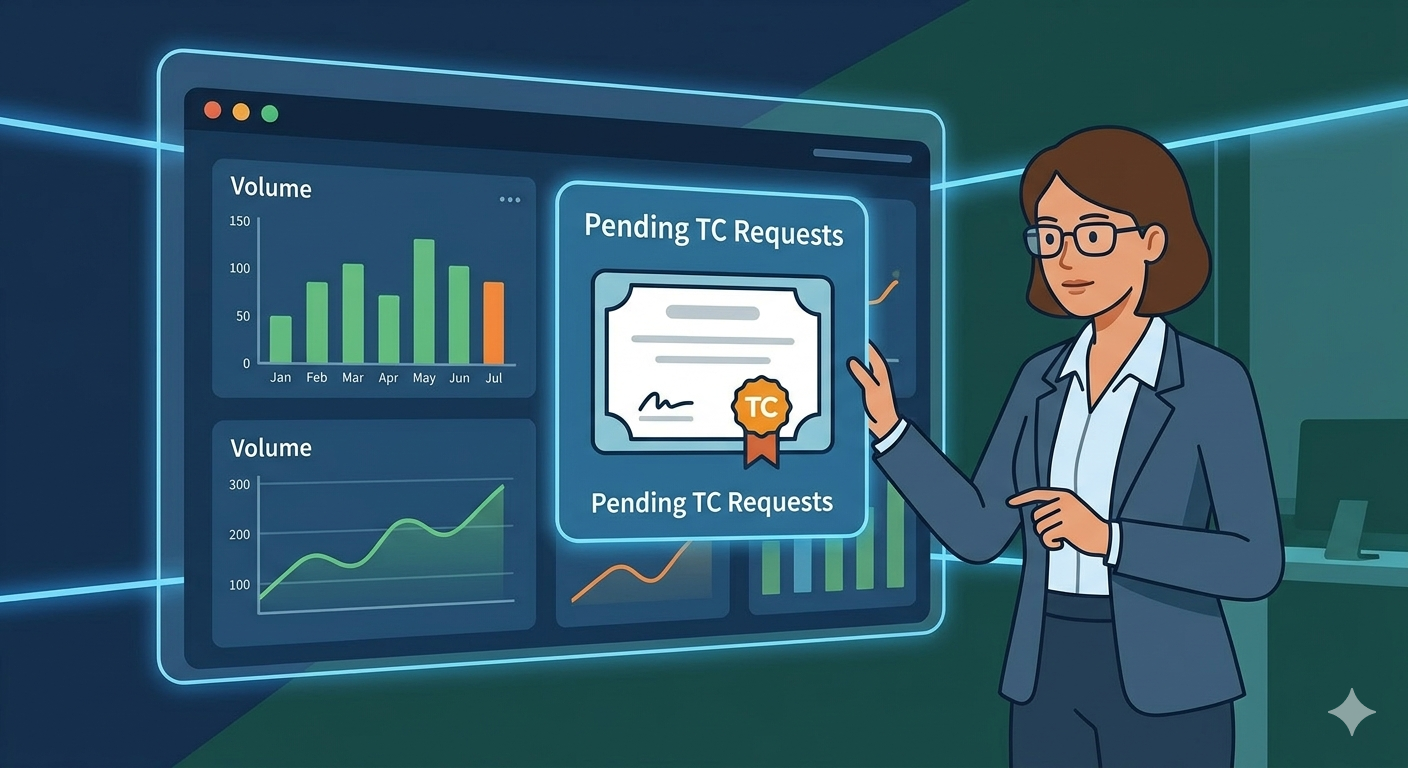
     • Review TC dashboards
    • Track school-level exit metrics

    4.3 Configuration

    HO Admin typically does not configure the TC module.

    4.4 Permissions

    HO Admin can:

     • View all TC requests
    • Export reports

    4.5 Reporting

    Typical reports include:

     • Monthly TC trends
    • Brand-level exit analysis

    5. School Admin/Principal Guide

    5.1 Responsibilities

     • Review TC requests raised by parents
    • Communicate with parents where necessary
    • Approve or request reconsideration

    5.2 Administration

    Admins manage the TC approval workflow.

    5.3 Event / Content Management

    Admins can:

     • View request details
    • Review reasons submitted by parents
    • Decide next action

    5.4 Permissions

    Admins can:

     • Approve TC requests
    • Mark requests as reconsidered

    5.5 Best Practices

     • Contact parents before approving TC
    • Use reconsider option to retain students where possible

    5.6 Use Cases

    Example:

     • Parent requests TC due to relocation
    • Admin approves after verification

    6. Parent Guide (Mobile)

    6.1 Access

    Parents access TC requests through the mobile application.

    6.2 Default View & Navigation

    Parents can navigate to:

    More → Transfer Certificate → Create Request

    6.3 What Parents Can Do

    Parents can:

     • Submit a TC request
    • Provide reason for exit
    • Share feedback
    • Withdraw request before approval

    6.4 Notifications

    Parents receive notifications when:

     • Request is reconsidered
    • Request is approved

    6.5 Use Cases

    Example:

    • Parent moving to another city raises TC request.

    7. Student Guide

    Students do not interact directly with this feature.

    8. Teacher Guide

    Teachers do not interact directly with this feature.

    9. How-To Guide

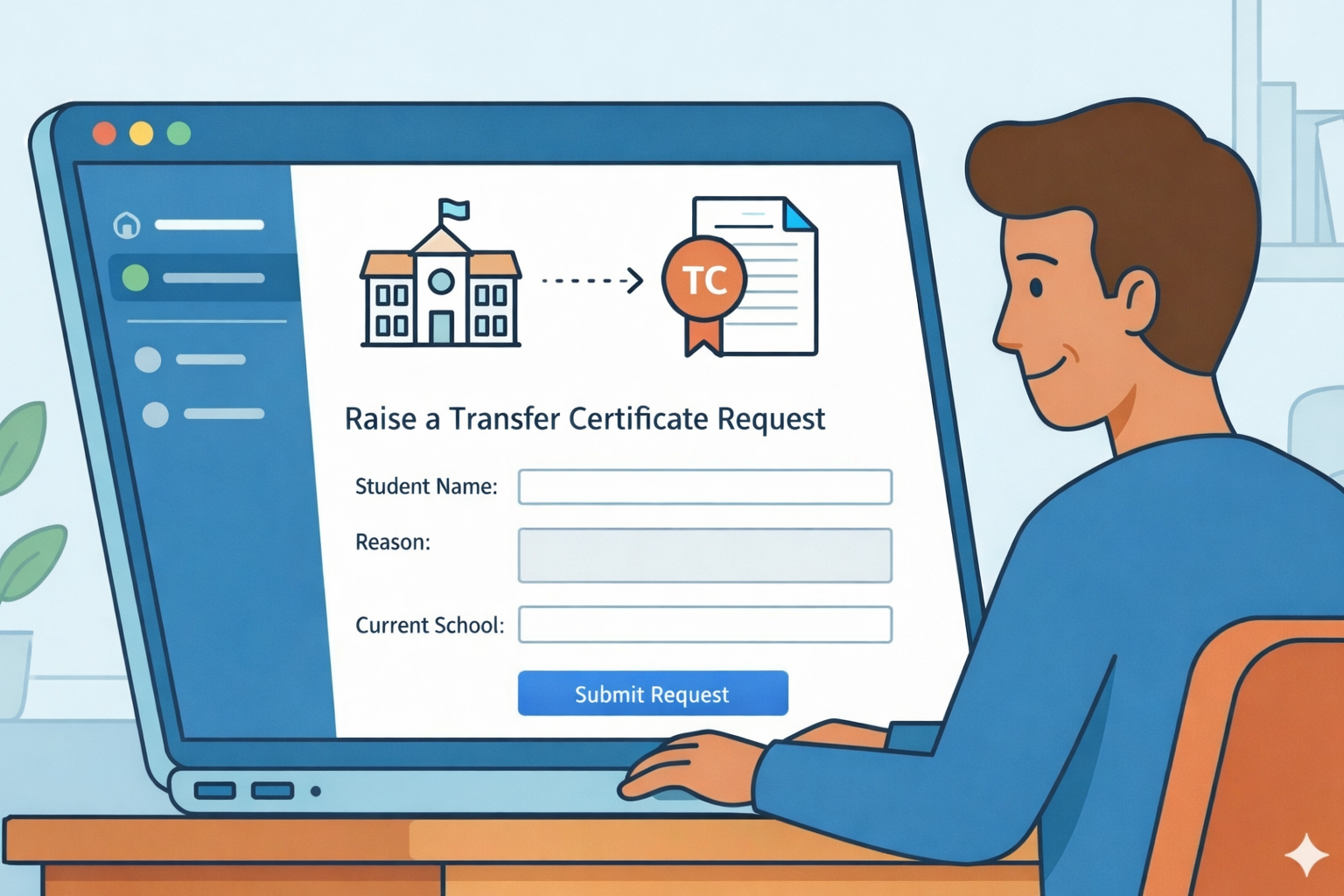
    How to Raise a TC Request (Parent)

    1. Open the mobile application
    2. Navigate to the More → Transfer Certificate
    3. Select Transfer Certificate Request
    4. Enter the reason for requesting TC and review
    5. Provide feedback if required
    6. Submit the request

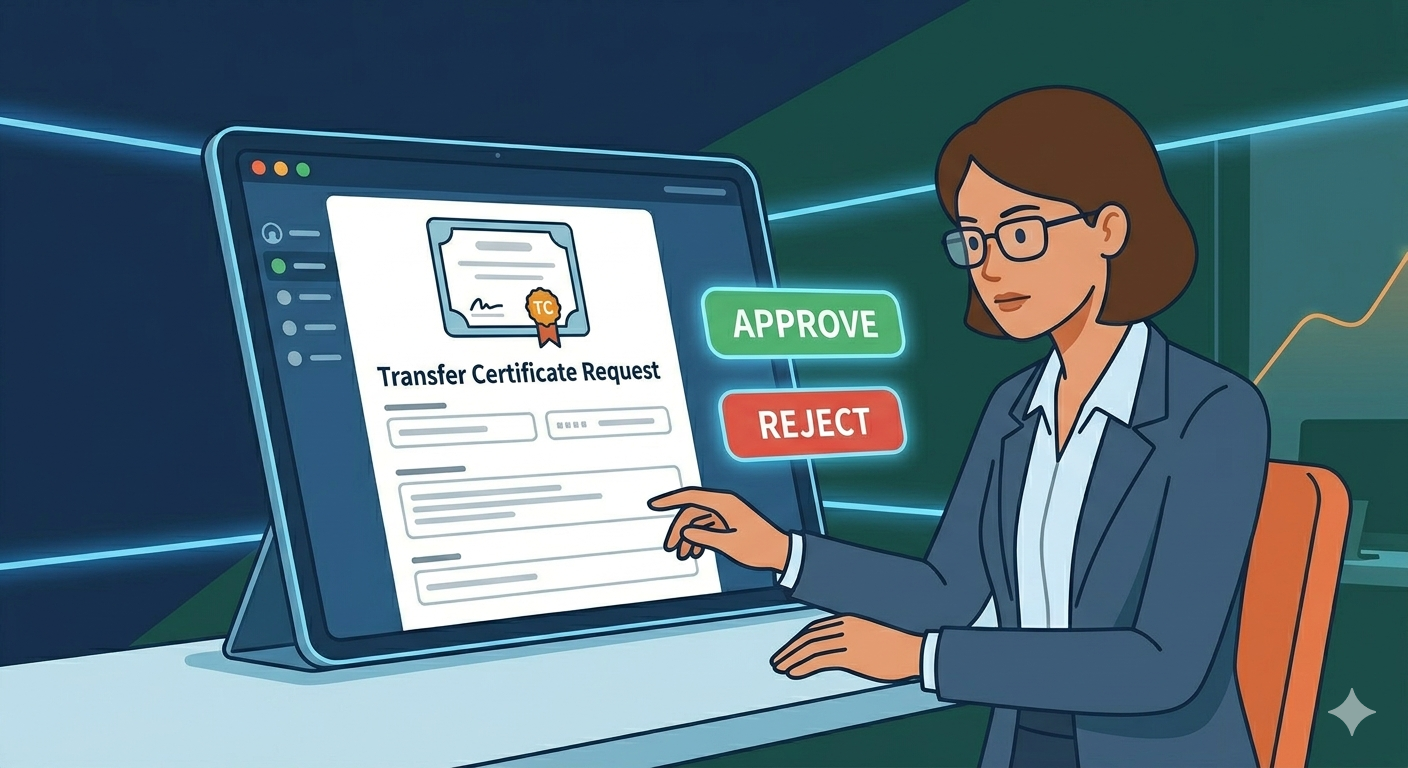
    How Admin Reviews a TC Request

    1. Login to the LMS web portal
    2. Navigate to School Management → Transfer Certificate Requests
    3. Open the parent request
    4. Review submitted details
    5. Choose one action: Approve / Request reconsideration

    10. Feature Logic & Display Rules

     • Only one active TC request per student is allowed
    • Requests are displayed in card format
    • Statuses include:

     Pending
    Reconsider
    Approved
    Withdrawn

    Activity timeline tracks all status changes.

    11. Notifications Overview

    Notifications are triggered when:

    EventAudience
    TC Request SubmittedSchool Admin and relevant stakeholders
    TC ReconsiderationParent
    Continue with TCSchool Admin and relevant stakeholders
    TC ApprovedParent

    Notifications include:

     • In-app alerts
    • Email notifications

    12. Governance & Compliance Rules

    System validations ensure:

    • TC requests apply only to the current academic year
    • Duplicate requests for the same Student + School + AY are prevented

    Audit logs maintain a record of:

    • Request creation
    • Status changes
    • Approval actions

    13. Frequently Asked Questions

    Who can create a TC request?
    Parents.

    Why can’t I raise another TC request?
    An existing request is still active.

    Why can’t I edit my request?
    Requests cannot be modified after submission.

    What happens when the school asks me to reconsider?
    You will receive a notification and may discuss the request with the school.

    14. Conclusion

    The Transfer Certificate feature simplifies and digitizes the student withdrawal process while enabling schools to capture valuable feedback from parents.

    By centralizing requests within the LMS, the feature ensures transparency, accountability, and operational efficiency for parents, school administrators, and the Head Office.